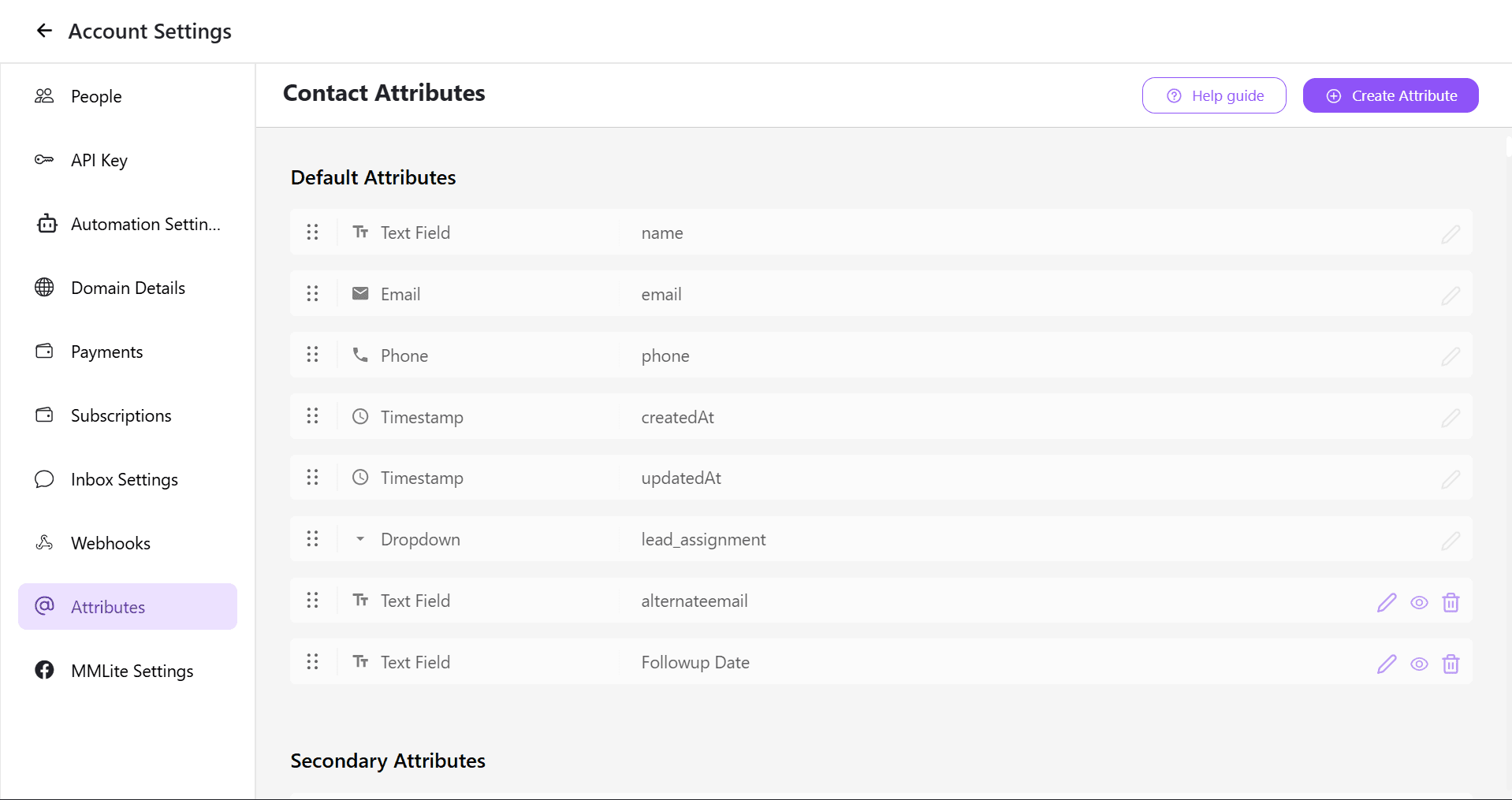
How to connect a google form with Pabbly & Cheerio to automate your messages?

Prerequisites

1. Google form with all the information you want to collect.

2. Pabbly workflow

3. Cheerio Workflow


Here is a video demonstration for connecting a Google form with pabbly.

1 Creating a Google form

Open the "forms.google.com" and create a new form as per your requirements and make sure the phone number you ask for should have the country code as well.
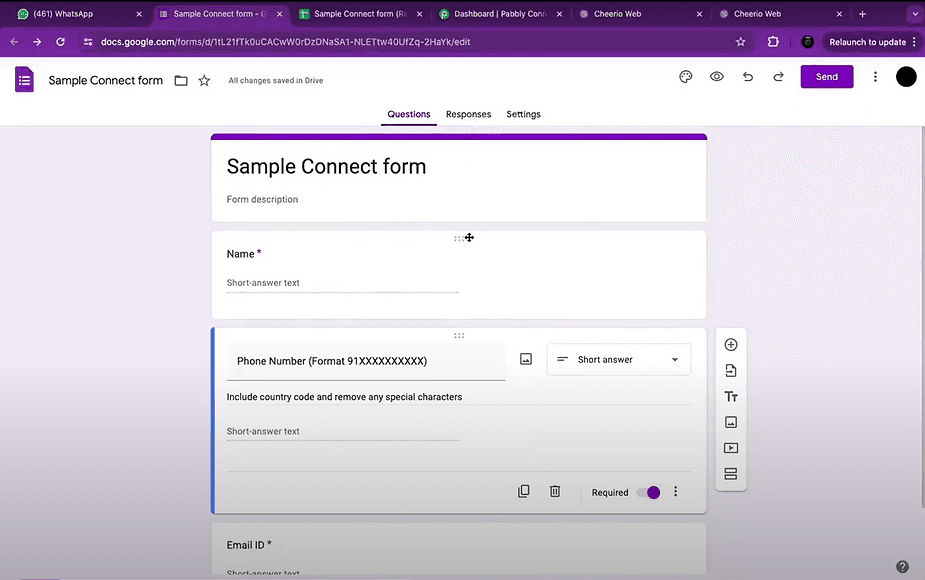
ree


Once your form is created, All your responses will be saved in a Google sheet.
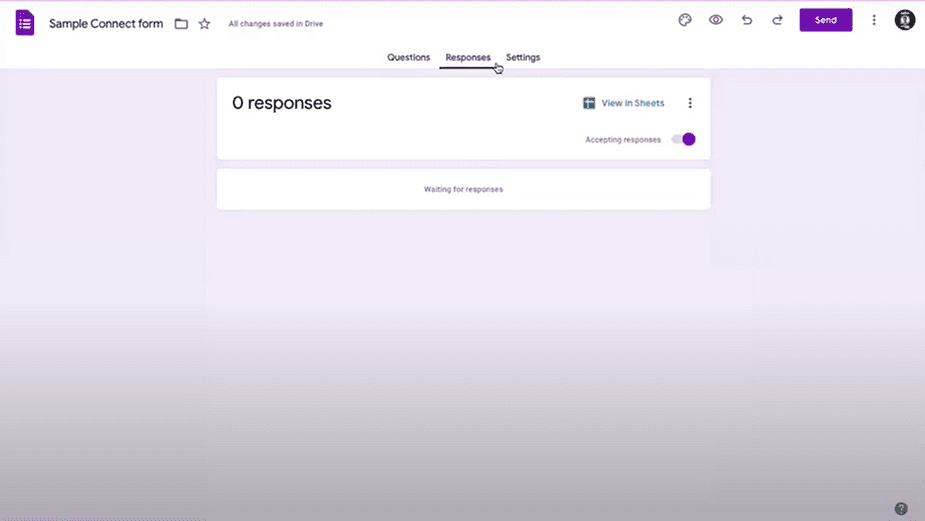
ree


2. Pabbly Workflow


2.1 Login to your Pabbly account and create a new workflow
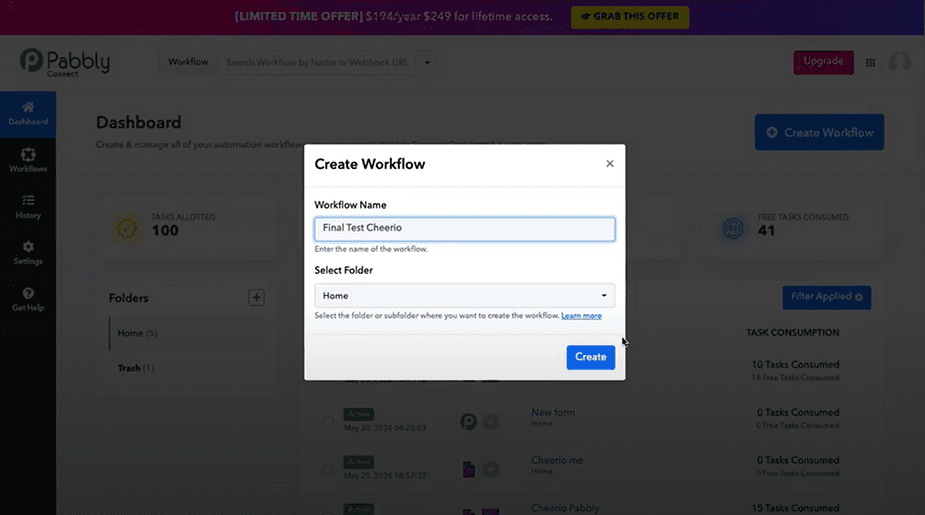
ree


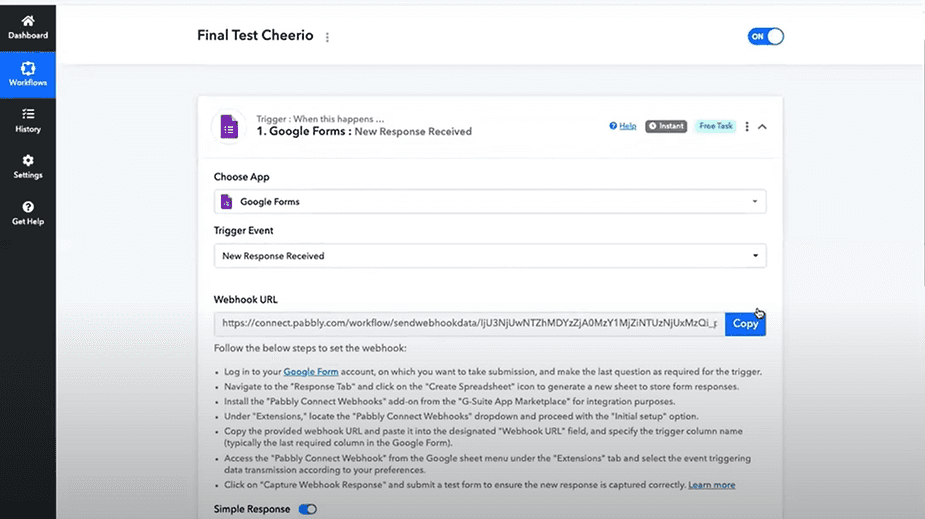
2.2 Choose for the trigger "Google forms" and within that choose the new response received. (This means whenever a new response is added to Google sheet, the workflow will trigger)
ree


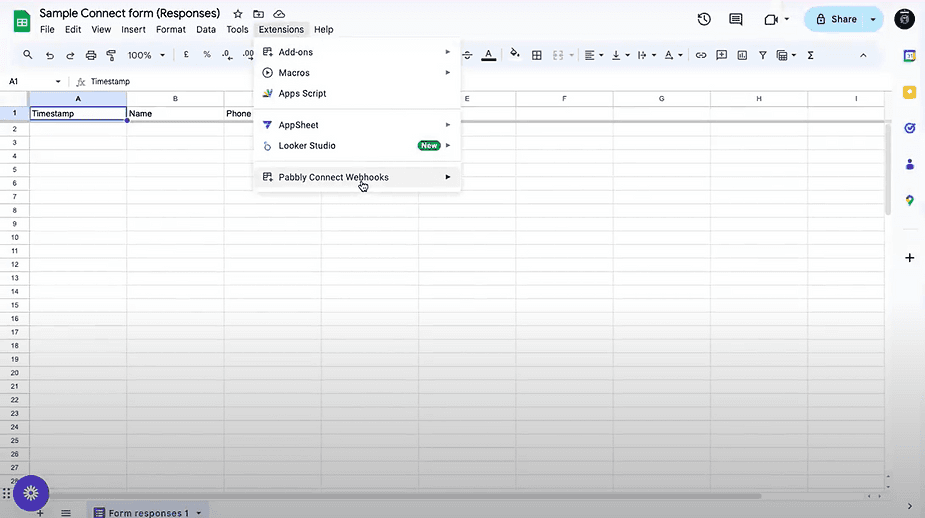
2.3 Here you will see "Webhook URL" Copy the URL and go to Google sheet > Extension > Addons > Pabbly connect webhooks
ree


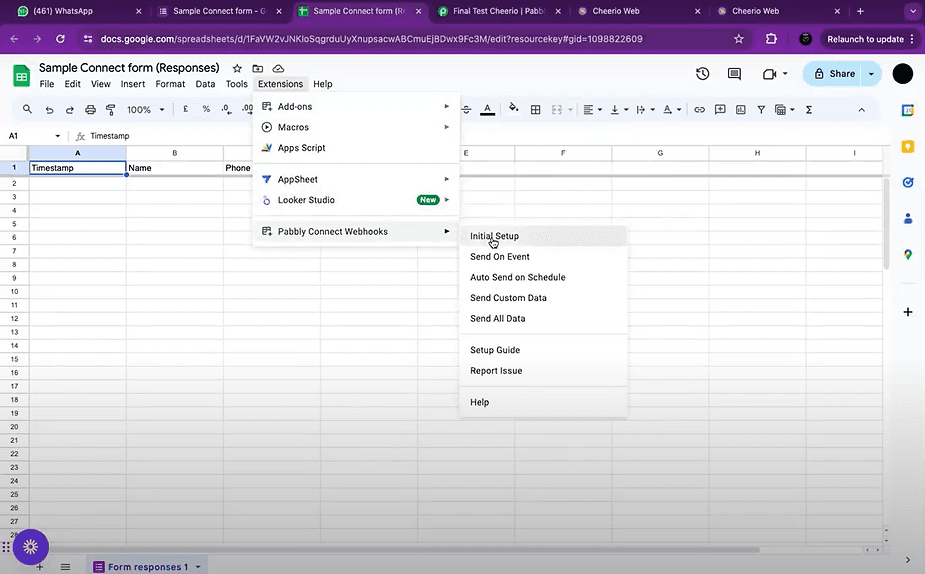
2.4 Now you have do the initial setup by clicking on Pabbly connect webhooks > Initial setup
ree


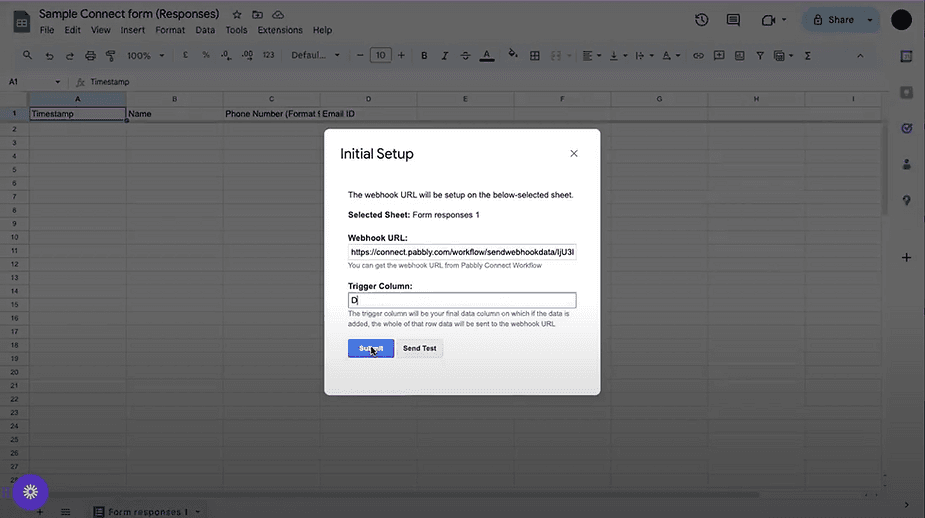
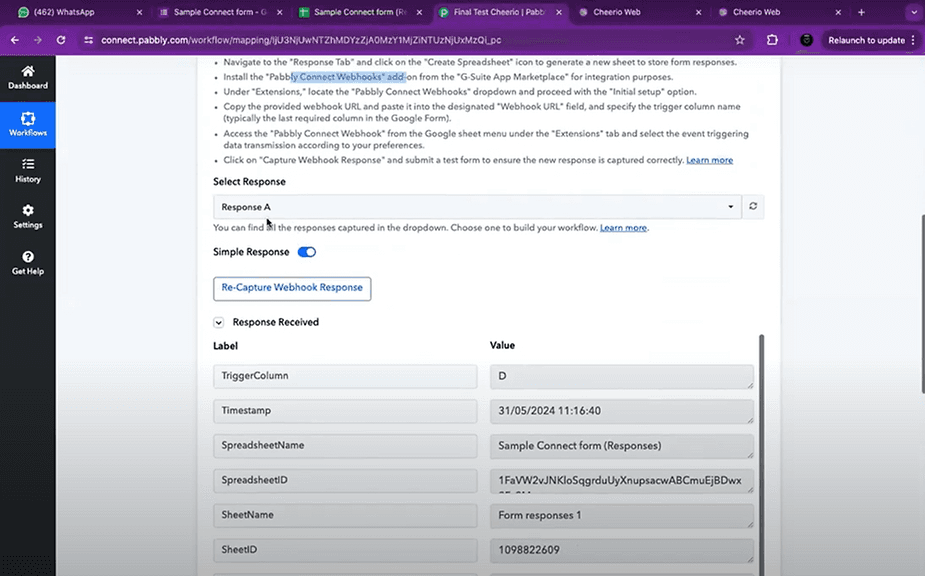
2.5 Paste the webhook URL which was copied from pabbly & select the last column of your Google sheet (In this case It's D which is Email ID) > Submit
ree


Now as soon as a new response gets added a webhook trigger will be send to pabbly with all the response details
ree


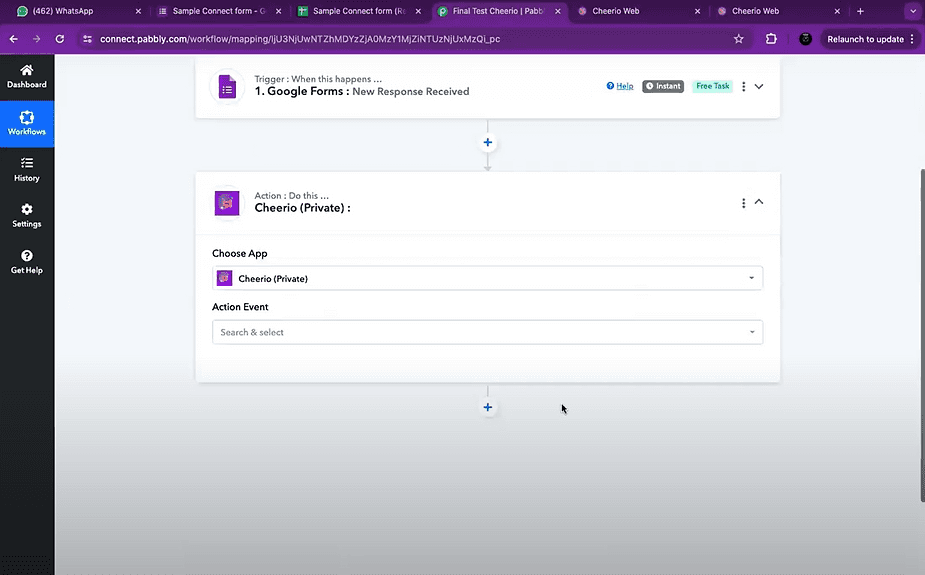
2.6 Adding an action in pabbly. Search for Cheerio application in the actions tab


Incase you don't find it. Click here to open the invitation.
ree


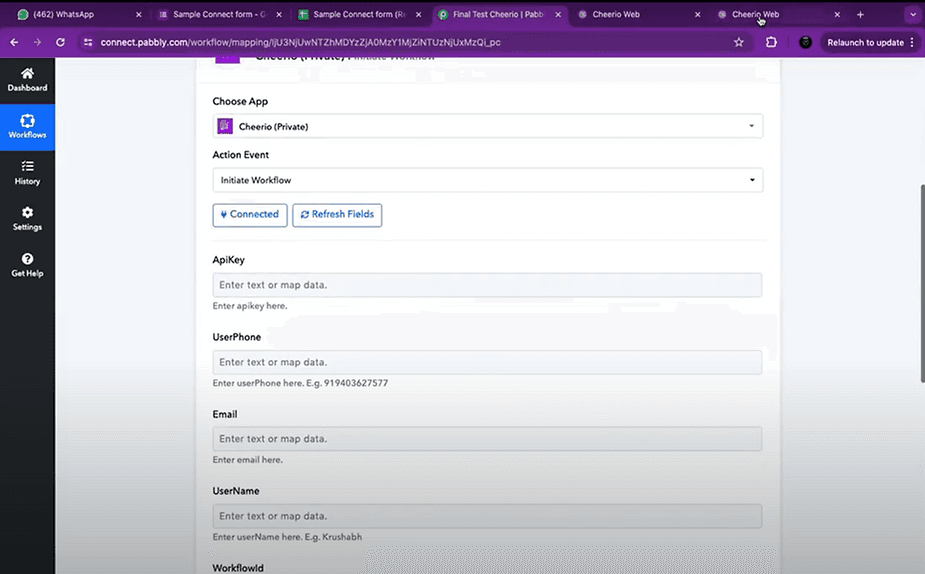
2.7 Choose "Initiate workflow" as an action event and add related details
ree


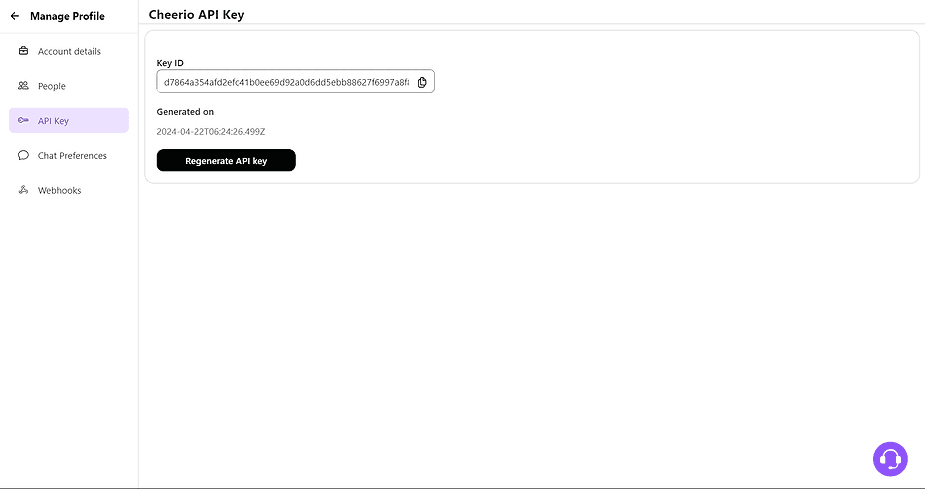
2.8 Add a Cheerio API Key here which you can generate from your Cheerio manage profile page.
ree


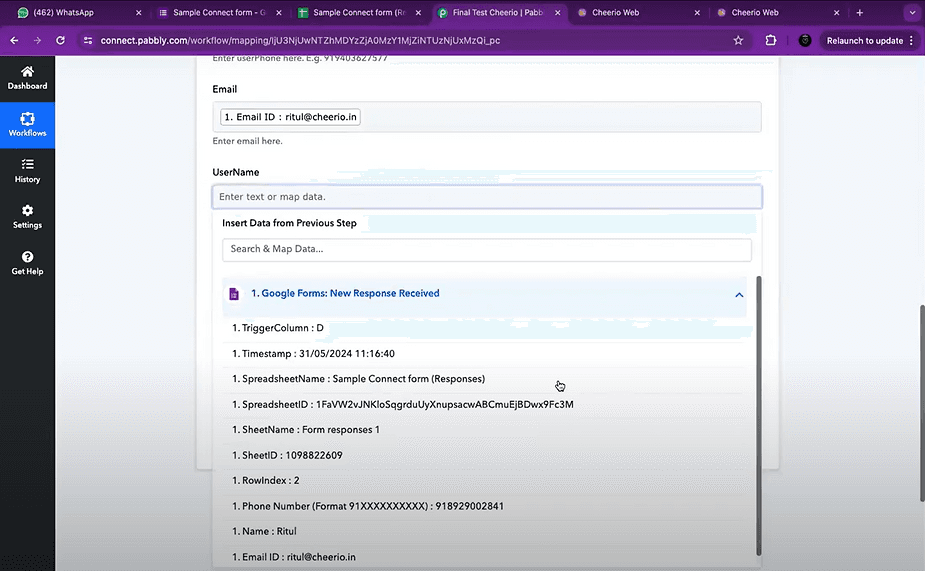
2.9 Map the Cheerio workflow fields with the Google form field. UserPhone (Cheerio) == Phone no (Google Form)


Email (Cheerio) == Email ID (Google Form)

UserName (Cheerio) == Name (Google Form)
ree


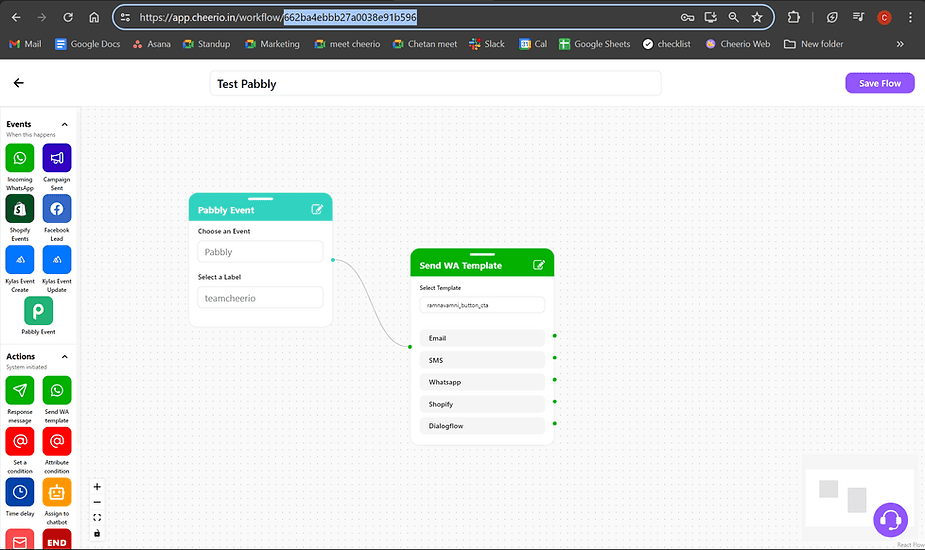
2.10 WorkflowId: Open your pabbly workflow on Cheerio to copy your workflow ID from top Link bar (Follow point no. 3 to know how to create pabbly workflow on Cheerio)
ree

and save your pabbly workflow is ready.


3. Creating Cheerio workflow

3.1 To create a workflow on Cheerio. Login to your Cheerio account & click on workflow > add new workflow.

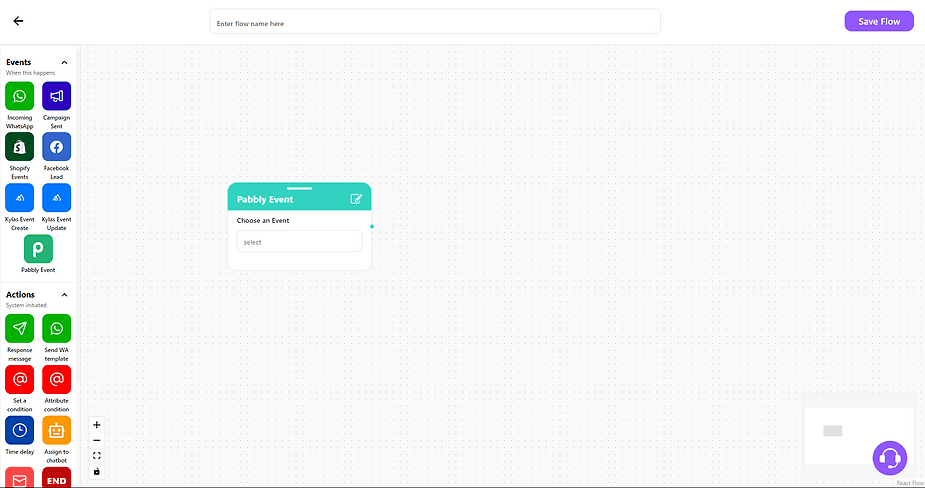
3.2 Drag & drop pabbly event node on the canvas
ree


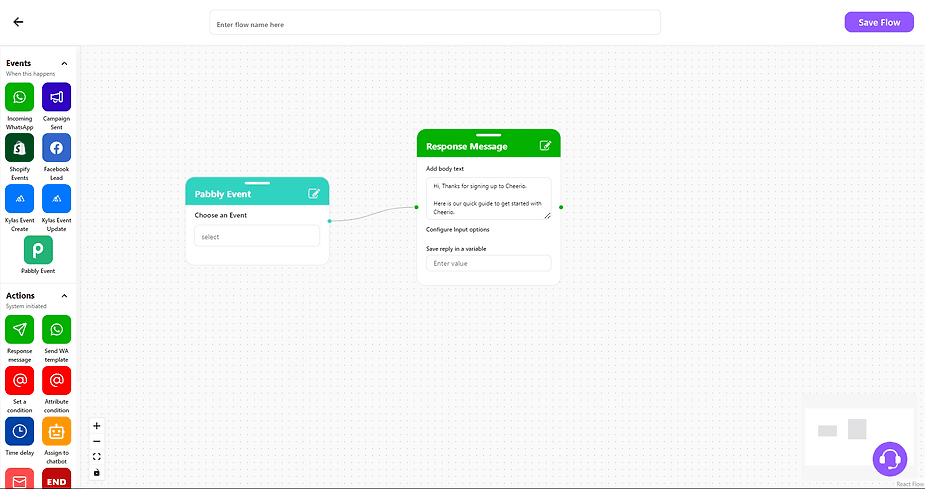
3.3 Choose for the event > add an action node (Like send WhatsApp or Email) whatever you want and save the flow.
ree


Note: The workflow you have created here, You have to copy this workflow ID to paste in your pebbly as discussed in point no 2.10
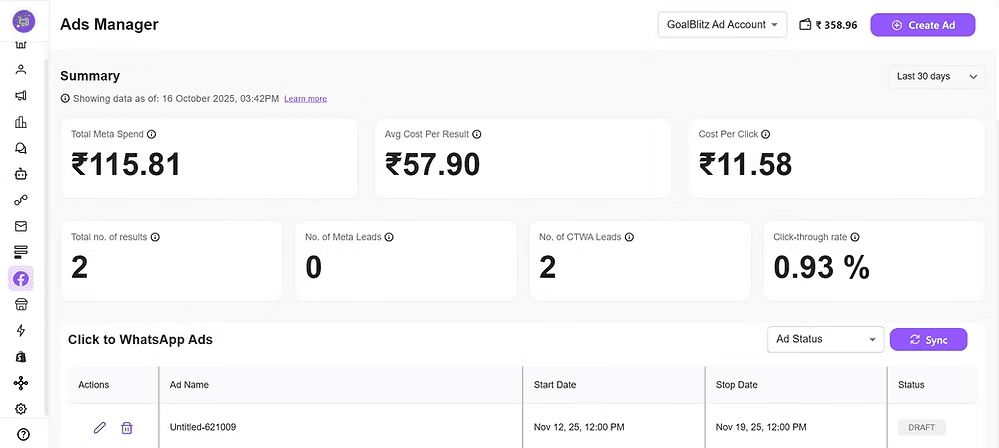
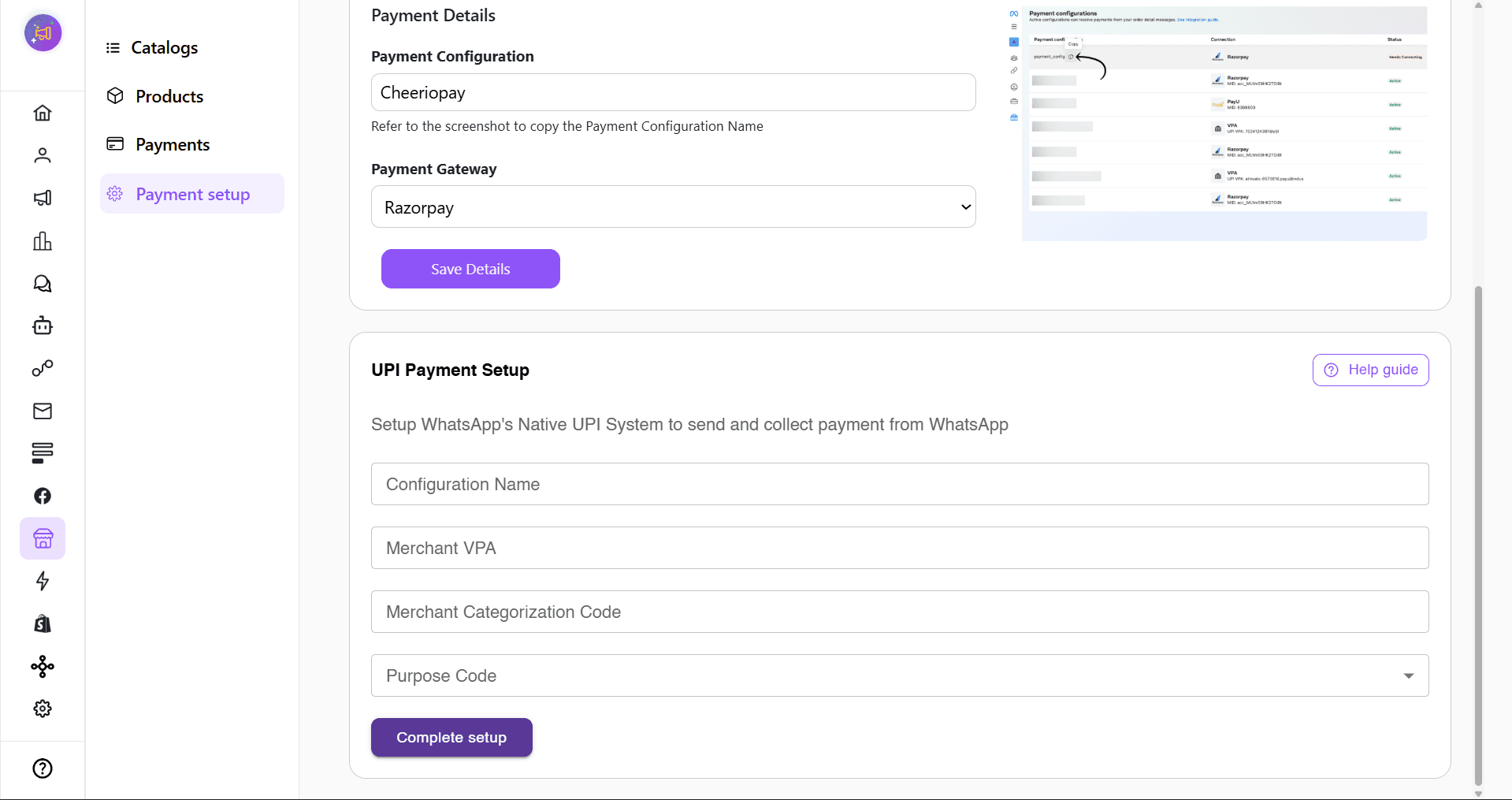
Recommended for You

How to create Click-to-Instagram DM (CTD) Ads & Post-Message Automation in Cheerio AI

January 29, 2026

Collect UPI Payments Directly Inside WhatsApp with Cheerio AI

January 24, 2026

How to create and manage custom contact attributes on Cheerio?

December 14, 2025

Pricing

Resources

Case Studies

Login
Book a Demo

See Cheerio AI in action

Schedule a demo to explore how Cheerio runs enterprise workflows across your systems and channels.

Book a demo

Trusted by enterprise teams running workflows at scale.

Running enterprise workflows with clarity and control.

admin@cheerio.in

Home

About

Features

Comparison

Testimonials

FAQ’s

Pages

Pricing

Blogs

Guides

Case Studies

Privacy Policy

Social

Linkedin

Instagram

Youtube

© 2026 Cheerio AI. All rights reserved.

Designed by Moonkraft Studio

See Cheerio AI in action

Schedule a demo to explore how Cheerio runs enterprise workflows across your systems and channels.

Book a demo

Trusted by enterprise teams running workflows at scale.

Running enterprise workflows with clarity and control.

admin@cheerio.in

Home

About

Features

Comparison

Testimonials

FAQ’s

Pages

Pricing

Blogs

Guides

Case Studies

Privacy Policy

Social

© 2026 Cheerio AI. All rights reserved.

Designed by Moonkraft Studio

See Cheerio AI in action

Schedule a demo to explore how Cheerio runs enterprise workflows across your systems and channels.

Trusted by enterprise teams running workflows at scale.

Book a demo

Running enterprise workflows with clarity and control.

admin@cheerio.in

Home

About

Features

Comparison

Testimonials

FAQ’s

Pages

Pricing

Blogs

Guides

Case Studies

Privacy Policy

Social

Linkedin

Instagram

Youtube

© 2026 Cheerio AI. All rights reserved.

Designed by Moonkraft Studio